 MakeSite
A LITTLE PREPARATION
Before you start
Have your site name, a short description, contact details, and a few images ready. You can add more later.
Create an account if registration is open. Follow the verification email, then sign in and open MakeSite. Already have an account? Sign in to continue.
Create an account · Opens in a new tab Sign in · Opens in a new tabSTEP 1 / 5
Choose a multi-page template
Use separate pages when visitors need more detail about your services, team, or contact options. This guide uses Morrow.
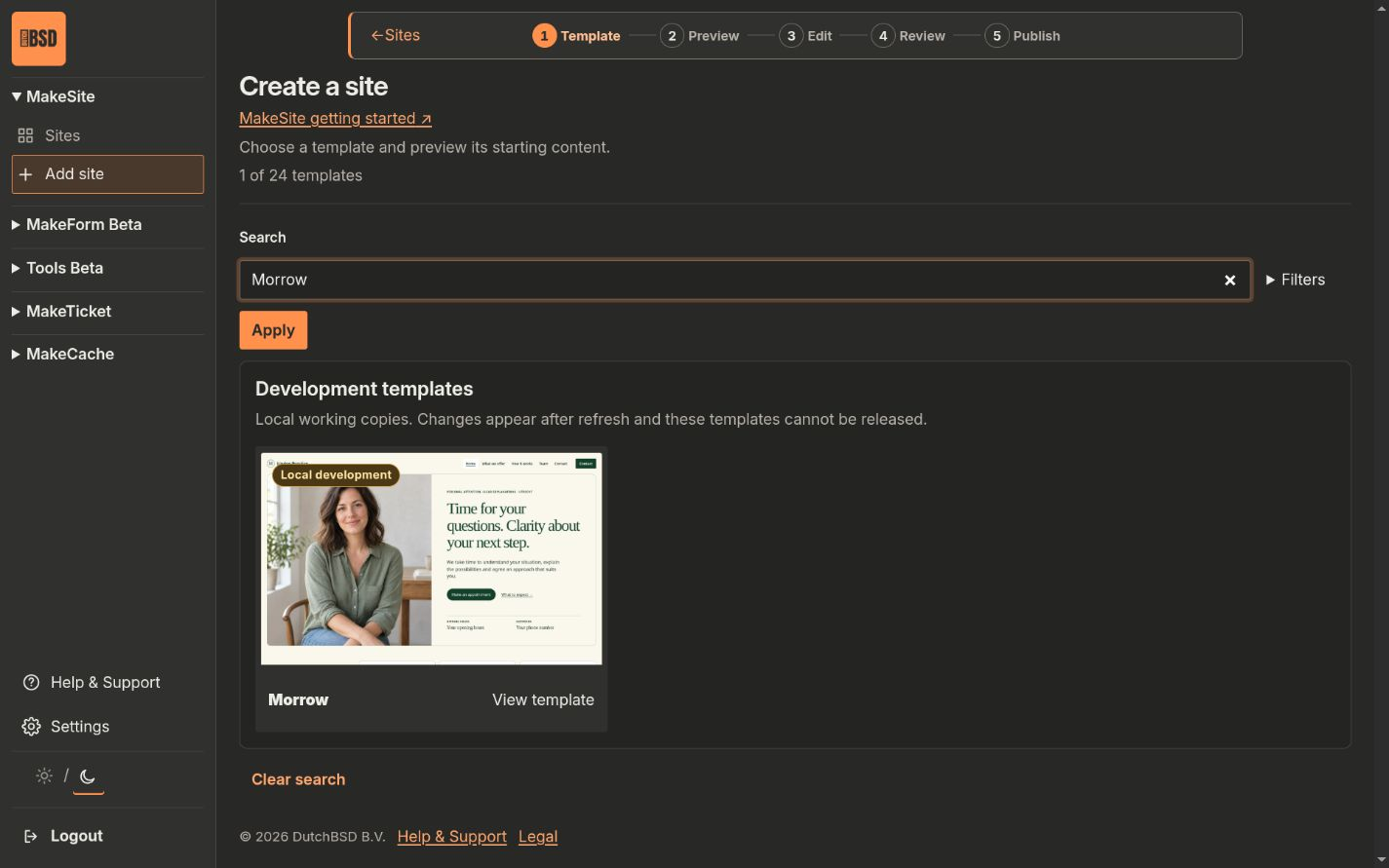
- Open MakeSite and select Add site.
- Search for Morrow. Select View template.
- Open the links in the website menu. Morrow starts with Home, What we offer, How it works, Team, and Contact.
Checkpoint: You have a design with a separate page for each main topic.
STEP 2 / 5
Preview the design
Try the design on more than one page before you create your draft.
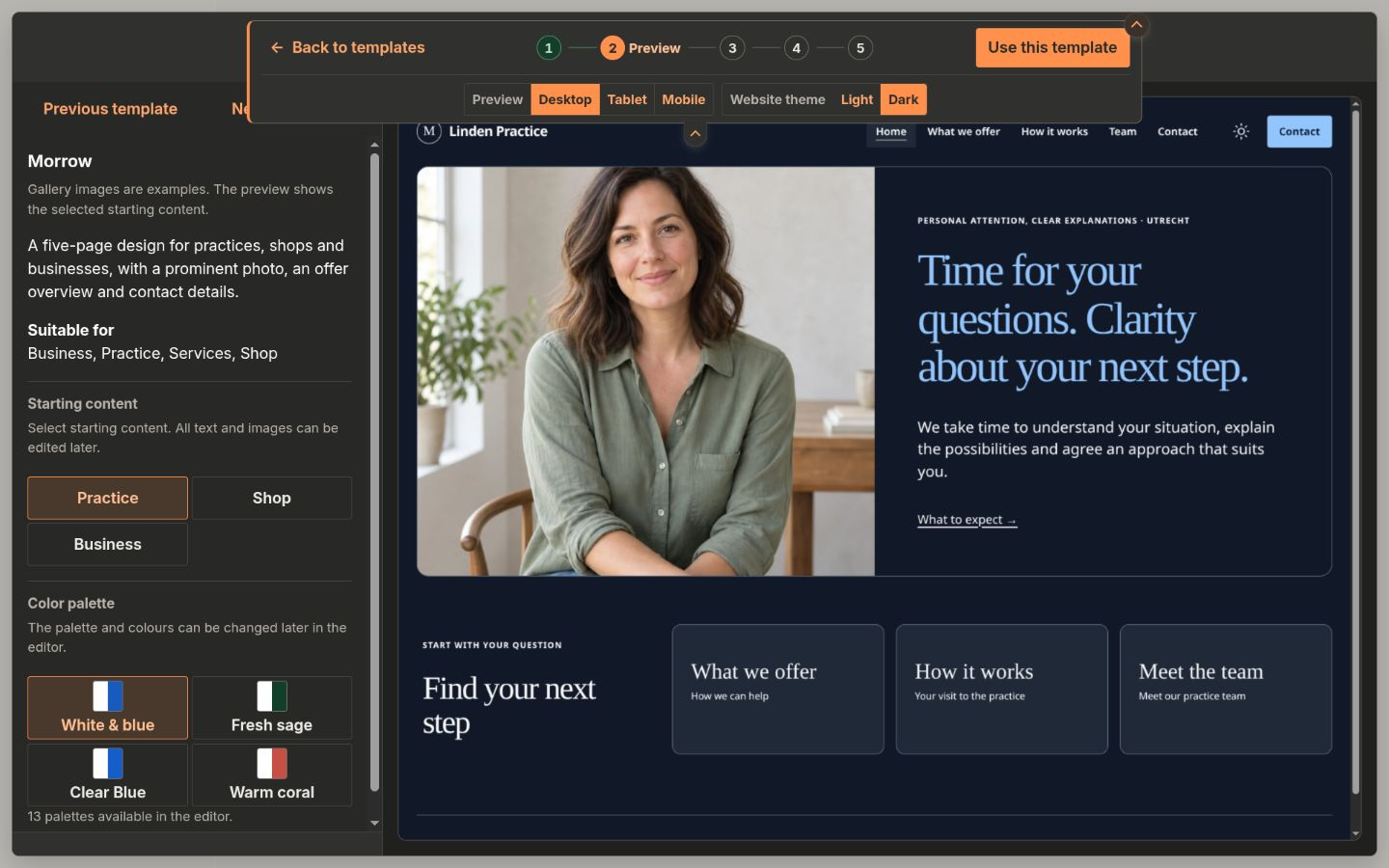
- Choose Starting content and a Color palette beside the preview, if offered. Wait for the preview to update.
- Open the small arrow. Select Mobile and open the website menu. Check that you can reach every page.
- Select Use this template. MakeSite opens your draft in the editor.
Open the preview controls
- Select the small arrow below the top bar to show or hide these controls.
- Select Mobile. Text wraps and the menu becomes a button. Open it and check every page.
- Switch Light and Dark. Check that text and buttons stay easy to read.
These controls affect only the preview. Starting content and Color palette beside the preview set the design for your new draft.
Checkpoint: Your draft is ready to edit. It is not live yet.
STEP 3 / 5
Edit your pages
Work through one page at a time. Update shared details once, then check where they appear across the site.
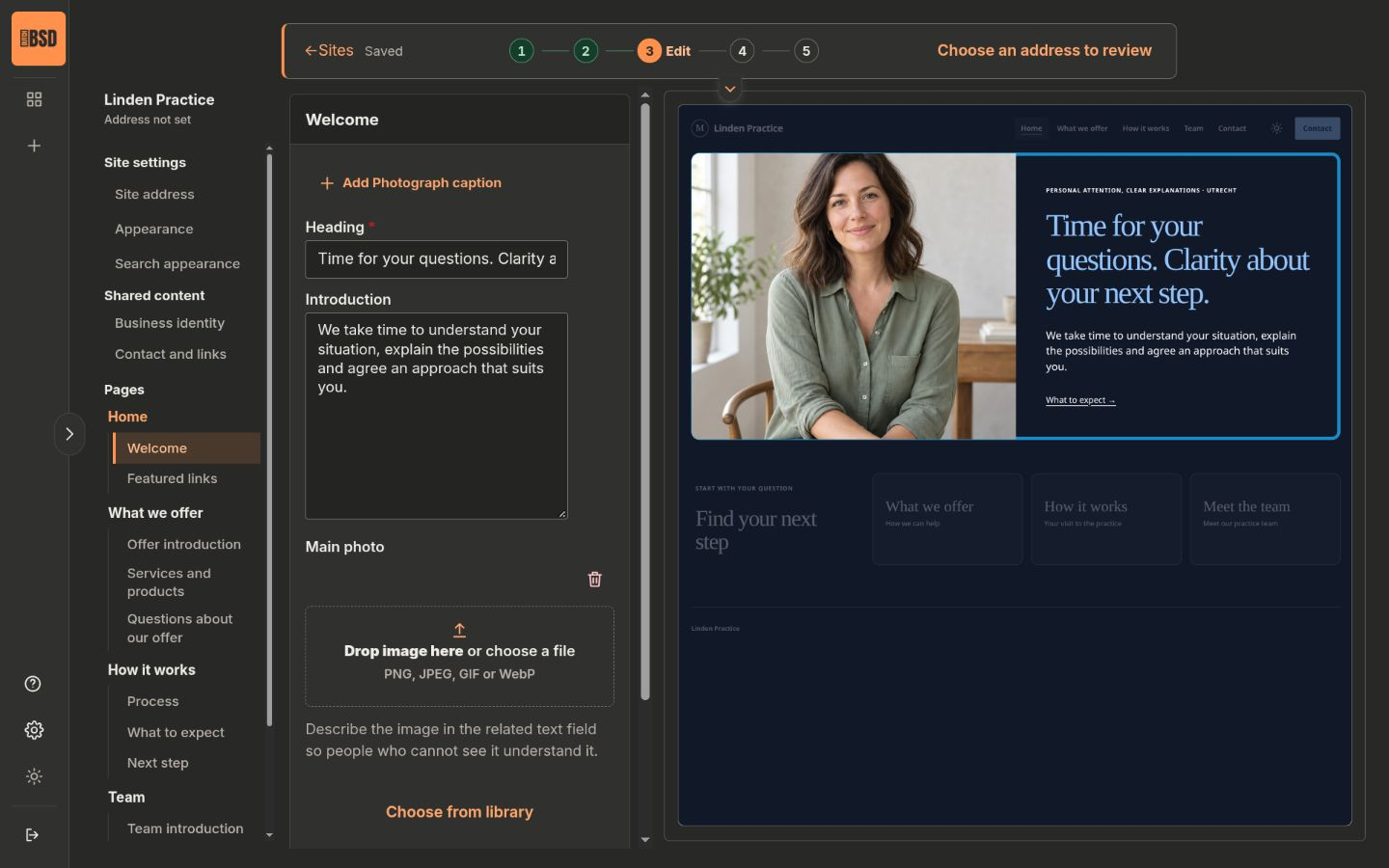
- Under Shared content, open Business identity and Contact and links. Enter your name and contact details.
- Under Pages, choose a page, then a section below it. Replace the sample text and images. Repeat for each page.
- On a small screen, use the Page and Section lists. Use Edit to change content and Preview to see the result.
- If you want to rename a page, open Edit selected page. Check Page name and Navigation label. Wait for Saved.
See the whole page
Open the small arrow below the top bar. Selected section highlights what you are editing. Full page shows the complete layout. Check Desktop and Mobile before you review.
Preview controls do not save site colors. Use Appearance to change your website. The sidebar sun and moon change MakeSite itself.
Keep it simple In Edit selected page, URL path changes the page address. Keep the home page at /. Clear Show in website navigation to hide a menu link; the page can still be opened at its address.
Checkpoint: Each page has useful content. Your name and contact details are correct across the site.
STEP 4 / 5
Review every page
Check the paths visitors will take through your site, from the first page to contacting you.
- Open Site address. Enter an available name for your MakeSite address and wait for Saved.
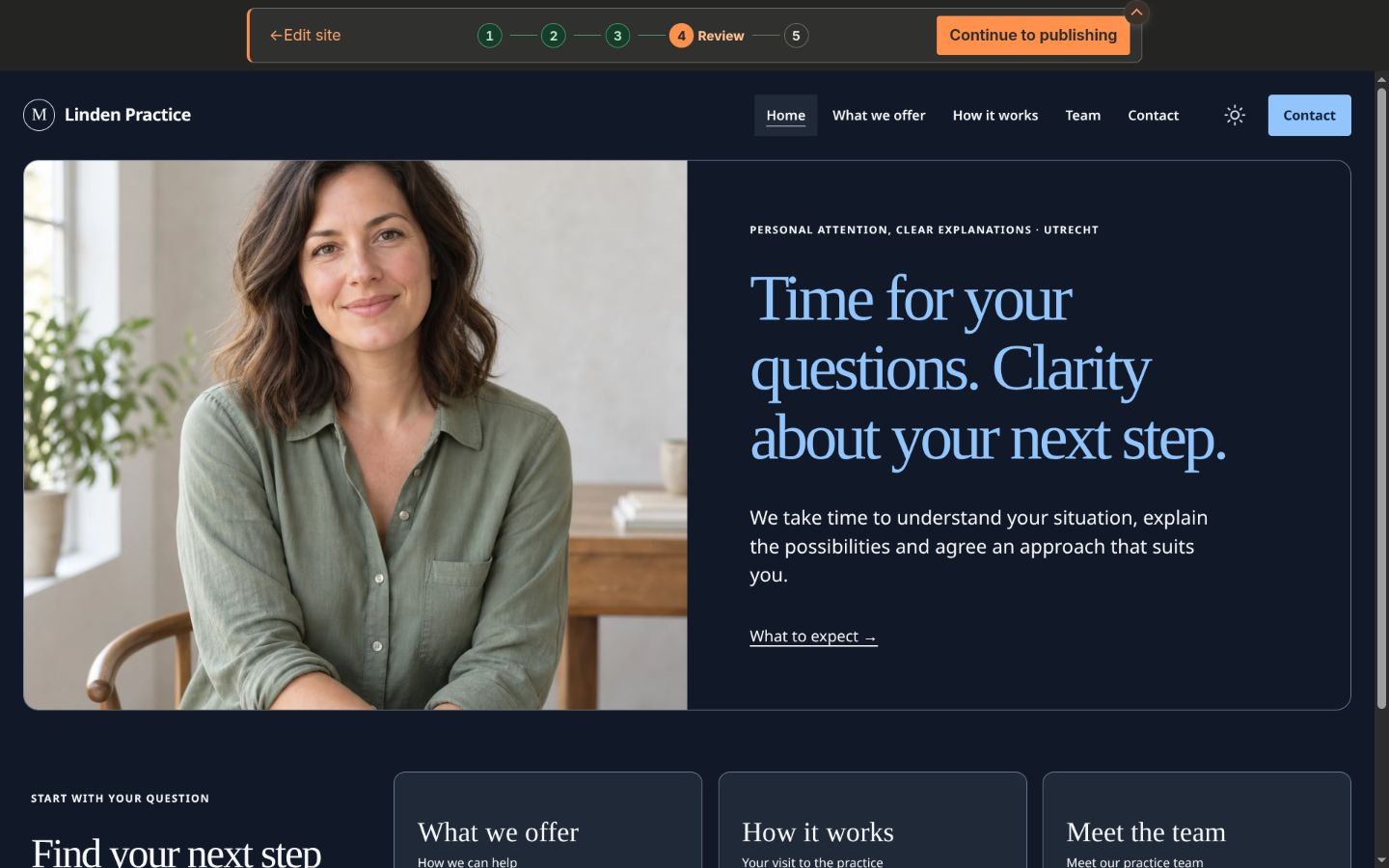
- Select Review site. Wait for the review to open. If a review already exists, select Open review.
- Open every menu link. Check page headings, images, buttons, and contact links. On your phone, open the menu and visit each page again.
- If you change content, a page address, or a menu label, create a new review and check the links again.
Checkpoint: Every page and menu link works in the version you want to publish.
STEP 5 / 5
Publish site
Publishing makes the reviewed version available to visitors.
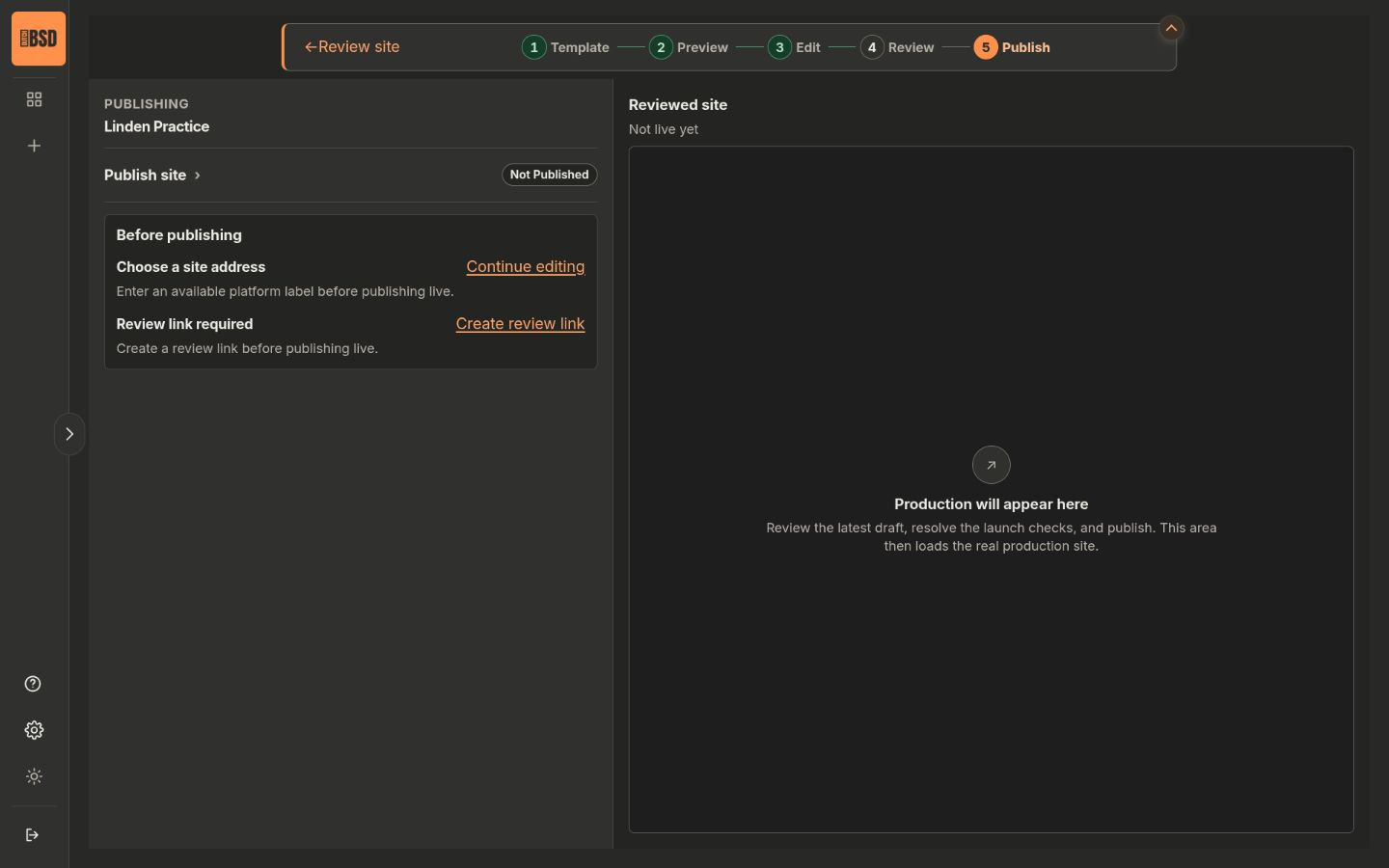
- In the review, select Continue to publishing. Complete the items listed under Before publishing.
- If payment is required, follow Pay and continue. A workspace owner or administrator may need to arrange this.
- Select the approval checkbox and then Publish site. Wait for Live, then select Open live site.
Keep it simple Use your MakeSite address to get started. You can connect your own domain later.
You’re live: Your site is live. Open its address and check it once more.
A FEW USEFUL ANSWERS
Need a hand?
I cannot create an account. What now?
Registration may be closed. If you already have an account, sign in. Otherwise, contact the person who invited you to MakeSite. You can read this guide without an account.
I did not receive the verification email.
Check your spam folder and the email address you entered. Sign in and use the option to send the verification email again, if shown.
My changes are not saved.
Keep the editor open. Check your internet connection. Select Try again if it appears, and wait for Saved before you leave the page.
Why can I not publish yet?
Read the message under Before publishing. You may need a current review, a MakeSite address, or payment. Follow the action shown next to the message.
My site address is still being prepared.
MakeSite sets up the secure connection for its own addresses. Keep the publishing page open and follow its status message. Use Check status or Get help publishing when offered.
Do I need my own domain?
No. Start with the MakeSite address you chose in step 4. To connect your own domain later, open the Publish page and follow the domain instructions shown there.
How do I change my site after publishing?
Open the site from Sites. Edit the draft and wait for Saved. Review the latest version, then publish the update. Saving a draft does not update the live site.
Ready to make it real?
Keep each page focused. Help visitors find the next step.
Screenshots show an example site in the local MakeSite portal. Your content and available options may differ.